How-To
How to Choose a Mechanical Keyboard for Hybrid Work
Hybrid work demands a keyboard that travels well yet delivers full-day comfort at your desk—here's how to match layout, switches, and connectivity to your split routine.
// KEY TAKEAWAYSWhat to know
- Compact layouts without numpads reduce bag weight and desk footprint while retaining arrow keys and function rows for document work.
- Tactile switches deliver typing feedback without the noise that disrupts open offices, while linear switches suit private home setups.
- Wireless connectivity with multi-device pairing lets you switch between office and home computers without carrying extra cables.
- Hot-swappable sockets let you change switches as your environment changes, extending the keyboard's useful life across different workspaces.
You carry your laptop between a quiet home office and a shared coworking desk three days a week, and the built-in keyboard leaves your wrists aching by midafternoon. A mechanical keyboard solves the comfort problem, but hybrid work adds constraints that desktop setups ignore: the board must fit in your commute bag, connect without tangled cables, and type quietly enough for open offices while still delivering the tactile feedback that makes mechanical switches worth the investment. Choosing the right one means matching four variables—layout size, switch type, connectivity, and build quality—to the specific demands of split-location work. This guide walks through each decision in the order that narrows your options fastest, so you spend less time comparing spec sheets and more time typing comfortably wherever you work.
Step 1: Match Your Layout to Your Commute and Desk Space
Key takeaway - Tenkeyless and compact layouts balance portability with the arrow keys and function row that hybrid work requires, while full-size boards add weight and desk space that commutes and shared tables penalize.
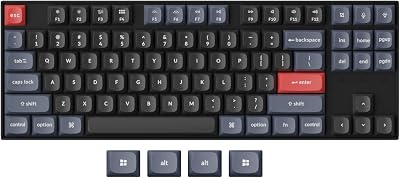
Start with layout size because it determines whether the keyboard fits in your bag and leaves room for a mouse on smaller desks. Tenkeyless layouts remove the numpad, cutting width while keeping the arrow keys and function row that document editing and spreadsheet navigation require. Compact layouts shrink further by moving some keys to secondary layers accessed with function combinations, which reduces muscle memory conflicts when you switch back to your laptop keyboard. Full-size boards with numpads add weight and bulk that hybrid commutes penalize, and they push your mouse farther right, which strains your shoulder on narrow coworking tables. If you work with financial data daily, a numpad matters enough to justify the size, but most hybrid roles prioritize portability over dedicated number entry. Measure your smallest workspace first—the coworking hot desk or coffee shop table—and choose a layout that leaves at least four inches of mouse space to the right. For detailed comparisons of layout options across price points, see our ranking of the best mechanical keyboards scored by portability and feature density.
Step 2: Choose Switches That Work in Both Environments
Key takeaway - Tactile switches balance feedback with office-appropriate noise levels, while linear switches suit quieter environments and clicky switches work only in private home offices.
Switch type determines typing feel and noise level, and hybrid work requires a choice that performs in open offices without sacrificing the feedback that makes mechanical keyboards preferable to membrane alternatives. Tactile switches provide a physical bump at the actuation point, confirming each keystroke without the audible click that disrupts coworkers in shared spaces. Linear switches press straight down with no bump or click, making them quieter still but removing the tactile confirmation that reduces typing errors during long documents. Clicky switches deliver the loudest feedback and work only in private home offices where noise does not matter. If your office days involve phone calls or nearby colleagues, tactile switches offer the best compromise between feedback and discretion. If you work in a private home office most days and visit a quiet coworking space occasionally, linear switches keep noise low in both settings. Test switches in person when possible, because the difference between tactile and linear affects typing speed and comfort more than any other keyboard variable.
Step 3: Prioritize Wireless Connectivity with Multi-Device Pairing
Key takeaway - Wireless connectivity with multi-device pairing eliminates cable management and lets you toggle between office and home computers instantly, while wired boards add commute weight and port-hunting friction.
Wireless connectivity eliminates the cable management that hybrid setups complicate, and multi-device pairing lets you switch between your office desktop and home laptop without unplugging and reconnecting. Bluetooth models connect to three or more devices simultaneously, toggling between them with a key combination, which saves the seconds that accumulate into minutes when you switch locations multiple times per day. Wireless models with USB dongles offer lower latency than Bluetooth, which matters for gaming but makes no practical difference for typing and spreadsheet work. Wired-only keyboards cost less and never need charging, but they add a cable to your commute bag and require you to find the right port on unfamiliar office monitors. Battery life varies widely, with some wireless boards lasting months on a charge and others requiring weekly top-ups, so check runtime specs before buying. If your office and home computers run different operating systems, confirm that the keyboard supports both without requiring separate software installations.
Step 4: Verify Build Quality and Hot-Swappable Sockets
Key takeaway - Aluminum frames survive commute transport better than plastic, and hot-swappable sockets let you change switches as your workspace needs evolve without replacing the entire keyboard.
Build quality determines whether the keyboard survives daily bag transport, and hot-swappable sockets let you change switches as your workspace needs evolve without buying a second board. Aluminum frames resist the flex and creaking that plastic cases develop after months of commute jostling, and they add enough weight to keep the keyboard stable during fast typing without making the bag noticeably heavier. Hot-swappable sockets let you pull switches out and press new ones in without soldering, which means you can start with quiet tactile switches for office days and swap to clicky switches for home use, or replace a failed switch in minutes instead of discarding the entire keyboard. Keycap material affects durability more than feel, with double-shot PBT plastic resisting the shine and fading that ABS plastic develops within months of heavy use. Check whether replacement keycaps and switches are widely available before buying, because proprietary designs lock you into a single vendor for future upgrades. If you plan to keep the keyboard for several years, hot-swappable sockets and standard keycap sizing justify a higher upfront cost by extending useful life across changing work environments.
The takeaway
Choosing a mechanical keyboard for hybrid work means prioritizing portability and noise control without sacrificing the typing comfort that justifies the upgrade from your laptop's built-in keys. Start with a tenkeyless or compact layout that fits your commute bag and smallest workspace, then match switch type to your noisiest environment—tactile for open offices, linear for quieter spaces. Wireless connectivity with multi-device pairing eliminates the cable friction that hybrid setups create, and hot-swappable sockets let you adapt the keyboard as your work locations and preferences change. The right board reduces wrist strain, speeds up your typing, and works equally well on a coworking hot desk and your home office setup, making it one of the few pieces of equipment that improves productivity in both locations.
the best mechanical keyboards
Read the ranking// FREQUENTLY ASKEDQuick answers
- How much does a good hybrid-work mechanical keyboard cost?
- Keyboards that balance portability, wireless connectivity, and hot-swappable switches start around one hundred dollars and reach three hundred for premium aluminum builds with extended battery life. Budget wired models cost less but add commute friction and cable management, while high-end custom boards exceed five hundred dollars with features that hybrid work does not require. Most hybrid workers find the best value in the one-fifty to two-hundred range, where you get reliable wireless, decent build quality, and switch flexibility without paying for gaming-focused latency or exotic keycap materials.
- Can I use the same keyboard with my work laptop and home desktop?
- Wireless keyboards with multi-device pairing connect to both computers simultaneously and switch between them with a key combination, eliminating the need to unplug and reconnect. Most models support three or more paired devices and work across Windows, Mac, and Linux without separate software. Wired keyboards require you to physically move the cable between computers, which adds friction to your daily routine and risks leaving the keyboard at the wrong location.
- Are mechanical keyboards too loud for open offices?
- Tactile and linear switches produce less noise than clicky switches, making them appropriate for shared workspaces where colleagues sit within a few feet. Clicky switches deliver audible feedback that disrupts phone calls and concentration, so they work only in private offices or home setups. Adding O-rings to keycaps or choosing switches with dampening built in reduces noise further, and some keyboards include sound-absorbing foam inside the case that muffles the hollow echo that annoys nearby coworkers.
- Do I need a numpad for hybrid work?
- Most hybrid roles do not require dedicated number entry frequently enough to justify the extra width and weight that numpads add to your commute bag. If you work with financial data or spreadsheets daily, a numpad speeds up data entry, but you can also use the number row or an external numpad that stays at your primary desk. Tenkeyless layouts remove the numpad while keeping arrow keys and function rows, which document editing and navigation require more often than ten-key entry.
- What are hot-swappable switches and do I need them?
- Hot-swappable sockets let you pull switches out and press new ones in without soldering, which means you can change switch type as your workspace needs evolve or replace a single failed switch instead of discarding the keyboard. If you start with tactile switches for office use and later want clicky switches for home typing, hot-swappable boards let you make that change in minutes. Soldered switches lock you into your initial choice, which matters less if you are certain about switch preference but limits flexibility for hybrid workers whose environments change.
- How long does a wireless mechanical keyboard battery last?
- Battery life ranges from two weeks to six months depending on backlight usage, connection type, and battery capacity. Keyboards without RGB lighting last longer than models with per-key illumination, and Bluetooth connections drain batteries faster than low-energy wireless protocols. Most hybrid workers charge weekly or monthly, which is manageable if the keyboard supports typing while plugged in. Check whether the board uses replaceable batteries or a built-in rechargeable cell, because replaceable batteries let you swap in fresh ones during long trips without finding a charging cable.
- Can I travel with a mechanical keyboard in my laptop bag?
- Tenkeyless and compact layouts fit in most laptop bags alongside a notebook and charger, while full-size boards require dedicated keyboard cases or larger backpacks. Aluminum frames resist the pressure and jostling that commutes create better than plastic cases, which can crack or develop loose keys after months of transport. Detachable cables reduce the risk of port damage during travel, and hard cases add protection at the cost of extra weight and bulk.