How-To
How to Choose a Mechanical Keyboard for Office Productivity
Hybrid work drove mechanical keyboard adoption beyond gaming—now choosing the right switch type, layout, and connectivity defines typing comfort.
// KEY TAKEAWAYSWhat to know
- Silent linear switches operate at 40-45 decibels, quieter than standard mechanical switches and suitable for shared office environments.
- Tenkeyless and 75 percent layouts save desk space while retaining arrow keys, supporting mobile professionals and compact home offices.
- Multi-device wireless connectivity allows instant switching between work laptop and personal PC, a productivity essential in hybrid setups.
- Ergonomic features like wrist rests and adjustable typing angles reduce wrist strain during extended typing sessions.
- Tactile switches deliver feedback without audible clicks, balancing typing confidence with office-appropriate noise levels.
Permanent remote work turned mechanical keyboards into daily productivity essentials, with Logitech's keyboards category growing 20 percent in Q1 2025 as businesses supplied employees with higher-quality input devices. The mechanical keyboard market reached 2.66 billion dollars in 2026, driven by professionals seeking tactile feedback, durability, and customization beyond membrane boards. Office buyers face a different set of priorities than gamers: noise control ranks above RGB lighting, multi-device pairing trumps polling rate, and ergonomic design matters more than aggressive aesthetics. This guide walks through five steps to identify the mechanical keyboard that enhances your typing speed, reduces wrist fatigue, and fits the acoustic boundaries of your workspace.
Step 1: Identify Your Switch Type Based on Noise Tolerance
Key takeaway - Silent linear switches at 40-45 decibels suit shared offices, while tactile switches deliver feedback without clicky noise disruption.
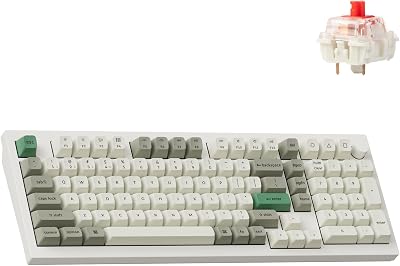
Silent linear switches represent the quietest mechanical keyboard switches available today, providing smooth keystrokes without tactile bumps and making them ideal for shared workspaces. Silent switches incorporate rubber or silicone dampeners and typically operate at around 40-45 decibels compared to 60-70 decibels for regular switches. Linear switches like Cherry MX Red and Gateron Yellow offer smooth, uninterrupted travel from top to bottom with no bump or click, best for fast-paced gaming and quiet offices. Tactile switches deliver a noticeable bump partway through the press, great for typists who want feedback without noise, with examples like Cherry MX Brown or Boba U4T. Clicky switches provide both a tactile bump and an audible click, satisfying but loud, so skip these in shared spaces where Cherry MX Blue and Gateron Blue are classics. If your desk sits in an open-plan office or you take video calls frequently, prioritize silent linear or tactile variants. Testing a switch sampler before committing to a full board eliminates costly mismatches between your typing preference and your acoustic environment.
Step 2: Select a Layout That Matches Your Desk Real Estate
Key takeaway - Tenkeyless and 75 percent layouts reduce desk footprint and shoulder reach, fitting hybrid work environments and compact home offices.
Compact formats like the tenkeyless layout are increasingly favored in home offices, while in shared workspaces the quiet office keyboard with internal sound dampening foam has become essential. Tenkeyless boards eliminate the number pad, shrinking the keyboard footprint by roughly 20 percent and allowing your mouse hand to stay closer to your body, reducing shoulder strain during extended sessions. Compact layouts balance size with functional arrow keys, supporting mobile professionals and gamers without requiring full-size desks. Seventy-five percent layouts retain arrow keys and a partial function row in an even tighter package, ideal for users who toggle between documents but rarely input numerical data. Full-size boards remain the default for accountants, data analysts, and anyone entering figures all day, but the width forces your mouse further right, increasing reach distance. Measure your available desk width and assess how often you use the number pad—if it touches fewer than ten times per hour, a compact layout delivers ergonomic gains without sacrificing functionality. For a broader look at workspace efficiency, explore desk organization accessories that complement compact keyboard setups.
Step 3: Prioritize Multi-Device Wireless Connectivity
Key takeaway - Multi-device Bluetooth pairing eliminates cable swapping and supports hybrid workflows across work and personal machines.
IT budgets now earmark ergonomic peripherals, elevating wireless, multi-device boards that switch between work laptop and personal PC. Modern productivity keyboards support Bluetooth pairing across three devices simultaneously, letting you toggle between a corporate Windows machine, a personal MacBook, and a tablet with a single button press. This eliminates the friction of unplugging cables or maintaining separate keyboards for each device, a workflow improvement that saves dozens of micro-interruptions daily. Most premium keyboards allow connection to up to three devices simultaneously, crucial if you work with a PC, a Mac, and a tablet, with the ability to switch between them at the press of a button going from luxury to basic productivity need. Battery life varies widely—backlit boards drain faster, while models with backlight-off modes stretch runtime to ten months between charges. Verify OS compatibility before purchasing, as some boards require proprietary software for key remapping that runs only on Windows or macOS. Wireless adds cost but reclaims desk space and supports the device-hopping habits of hybrid workers. If you want rankings across top models, check out the best mechanical keyboards scored by connectivity and build quality.
Step 4: Evaluate Ergonomic Features to Reduce Wrist Strain
Key takeaway - Adjustable typing angles and wrist rests maintain neutral wrist alignment, reducing strain and preventing repetitive stress injuries.
Ergonomic awareness has expanded beyond specialized split boards into mainstream keyboard design, with subtle curvature, adjustable typing angles, and refined wrist alignment features now integrated into a wider range of products. Wrist strain is often experienced by office workers, gamers, programmers, and those who frequently use computers, manifesting as pain, discomfort, stiffness, or even loss of mobility. Ideally, your keyboard should be placed directly in front of you at a height that allows your elbows to stay close to your body and form a 90-degree angle or slightly greater, helping maintain a neutral wrist position. Keyboards with negative tilt or adjustable feet let you fine-tune the angle, preventing upward wrist extension that compresses nerves during long typing sessions. Integrated or magnetic wrist rests provide a flat hand-to-arm transition, though some typists prefer hovering their wrists to avoid static pressure points. Ergonomic computer keyboards typically feature a split design that allows hands to sit shoulder-width apart, reducing ulnar deviation, and often come with tenting and negative tilt options. If you experience numbness, tingling, or aching after two hours at the keyboard, prioritize models with ergonomic adjustments or consider pairing a standard board with an external wrist rest and keyboard tray. Pair your keyboard with one of the best office chairs ranked for lumbar support and adjustability to complete your ergonomic setup.
Step 5: Match Build Quality and Customization to Your Budget
Key takeaway - Mid-tier boards with hot-swappable switches and acoustic tuning deliver the best value for full-time office typists who log six-plus hours daily.
The global mechanical keyboard market size is estimated at around 2.66 billion dollars in 2026, projected to reach 3.43 billion by 2031 with a compound annual growth rate of 5.19 percent, reflecting both premium and entry-level segments. Entry boards start around fifty dollars with basic ABS keycaps and fixed connectivity, suitable for users prioritizing silent switches and compact layouts without advanced features. Mid-tier models between one hundred and one hundred fifty dollars add hot-swappable switch sockets, letting you replace switches without soldering, and often include PBT keycaps that resist shine and deliver a deeper acoustic profile. A primary trend involves deep personalization through components like a hot-swappable PCB and custom keyboard firmware, allowing users to tailor their typing experience. Premium boards above two hundred dollars offer gasket-mounted cases for flex, pre-lubed stabilizers for quieter spacebar and shift keys, and multi-layer foam dampening that refines acoustics. One of the most noticeable shifts in the mechanical keyboard trend in 2026 is the rise of intentional acoustic tuning, with manufacturers now treating keyboard sound as a measurable engineering output rather than a byproduct. Assess how often you type—if you log six-plus hours daily, investing in a mid-tier or premium board with ergonomic and acoustic refinements pays dividends in comfort and focus. Casual typists gain sufficient value from entry models that prioritize silent switches and wireless convenience over customization depth.
The takeaway
Choosing a mechanical keyboard for office productivity hinges on aligning switch noise, layout size, connectivity, ergonomics, and budget with your daily typing volume and workspace constraints. Silent linear or tactile switches keep you neighbor-friendly in open offices, tenkeyless layouts reclaim desk space, and multi-device wireless pairing eliminates cable clutter across work and personal machines. Ergonomic adjustments like wrist rests and negative tilt prevent strain during marathon typing sessions, while mid-tier boards with hot-swappable switches and acoustic tuning deliver the best value for users logging six-plus hours daily. Start by testing switch samplers to match tactile preference and noise tolerance, measure your desk to confirm layout fit, then cross-reference connectivity needs against your device ecosystem. For data-driven rankings across top models scored by typing comfort, build quality, and productivity features, explore the best mechanical keyboards for 2026.
the best mechanical keyboards for 2026
Read the ranking →// FREQUENTLY ASKEDQuick answers
- Are mechanical keyboards too loud for open office environments?
- Silent linear and silent tactile switches operate at 40-45 decibels, comparable to membrane keyboards and quieter than standard mechanical switches. Models with internal foam dampening further reduce case resonance, making them suitable for shared workspaces. Avoid clicky switches like Cherry MX Blue, which produce audible clicks that exceed 60 decibels and disrupt nearby colleagues.
- How much should I spend on a mechanical keyboard for office work?
- Entry boards around fifty dollars provide silent switches and wireless connectivity for casual typists. Mid-tier models between one hundred and one hundred fifty dollars add hot-swappable switches, PBT keycaps, and better acoustics, delivering the best value for users typing six-plus hours daily. Premium boards above two hundred dollars offer gasket mounts and pre-lubed stabilizers but suit enthusiasts more than productivity-focused buyers.
- Do I need a number pad on my office keyboard?
- If you enter numerical data fewer than ten times per hour, a tenkeyless or 75 percent layout saves desk space and reduces shoulder strain by keeping your mouse hand closer to your body. Accountants, data analysts, and finance professionals who input figures constantly benefit from full-size boards with dedicated number pads. Measure your usage before deciding—most office workers overestimate their number pad dependency.
- Can I use one mechanical keyboard with my work laptop and personal computer?
- Modern wireless mechanical keyboards support Bluetooth pairing across up to three devices simultaneously, letting you switch between a work laptop, personal desktop, and tablet with a single button press. Verify OS compatibility before purchasing, as some models require proprietary software for key remapping that runs only on Windows or macOS. Multi-device pairing eliminates cable swapping and suits hybrid work setups.
- What keyboard features reduce wrist pain during long typing sessions?
- Adjustable typing angles and negative tilt prevent upward wrist extension that compresses nerves. Integrated or magnetic wrist rests provide a flat hand-to-arm transition, reducing pressure points. Split ergonomic designs position hands shoulder-width apart, minimizing ulnar deviation. Position your keyboard so elbows form a 90-degree angle and wrists stay neutral, not bent up or down, to maintain healthy alignment.
- Are hot-swappable keyboards worth the extra cost for office use?
- Hot-swappable boards let you replace switches without soldering, useful if your noise tolerance or tactile preference changes after initial purchase. Mid-tier models with hot-swap sockets cost twenty to thirty dollars more than fixed-switch boards but offer long-term flexibility. If you are confident in your switch choice after testing a sampler, fixed boards deliver equivalent typing performance at lower cost.
- How long does a wireless mechanical keyboard battery last?
- Battery life depends on backlight usage and connection type. Boards with RGB backlighting drain batteries in weeks, while models with backlight-off modes stretch runtime to ten months between charges. Bluetooth Low Energy consumes less power than older wireless protocols. Check manufacturer specs for realistic estimates, and prioritize USB-C charging over micro-USB for convenience and future-proofing.
- Do tactile switches work well for office productivity?
- Tactile switches deliver a noticeable bump at actuation without audible clicks, balancing typing confidence with office-appropriate noise levels. They suit typists who want physical feedback confirming keypress registration but need to stay quieter than clicky switches. Silent tactile variants add rubber dampeners to reduce bottom-out noise further, making them ideal for shared workspaces where membrane-level acoustics matter.
- Should I choose a plastic or metal keyboard case for office use?
- Plastic cases weigh less and cost less, ideal for portable setups and budget-conscious buyers. Metal aluminum cases add heft and premium feel but increase weight by one to two pounds, reducing portability. Both materials deliver equivalent typing performance when paired with proper internal dampening. Prioritize acoustic tuning and switch quality over case material unless you frequently transport your keyboard between office and home.